What you receive
As soon as your payment is confirmed, your account has:
- Your licence key. It is in your order email, on the order page, under My Account → Downloads and in the Template Library of your dashboard. One key covers every template you buy; Lifetime Access covers all of them.
- The template download. Under My Account → Downloads.
- The free CodersNoyan Templates plugin, which imports most templates in one click.
Download the plugin My downloads and key
Before you start
- A WordPress site (WordPress 6.0 or newer, PHP 7.4 or newer) and an administrator account on it.
- A new, empty site works best: the import sets the homepage, the main menu and the Elementor colours and fonts.
- Free space on your hosting: the import adds the template's photos and the plugins it needs.
Your template
Find your template to see how it is installed and what it needs.
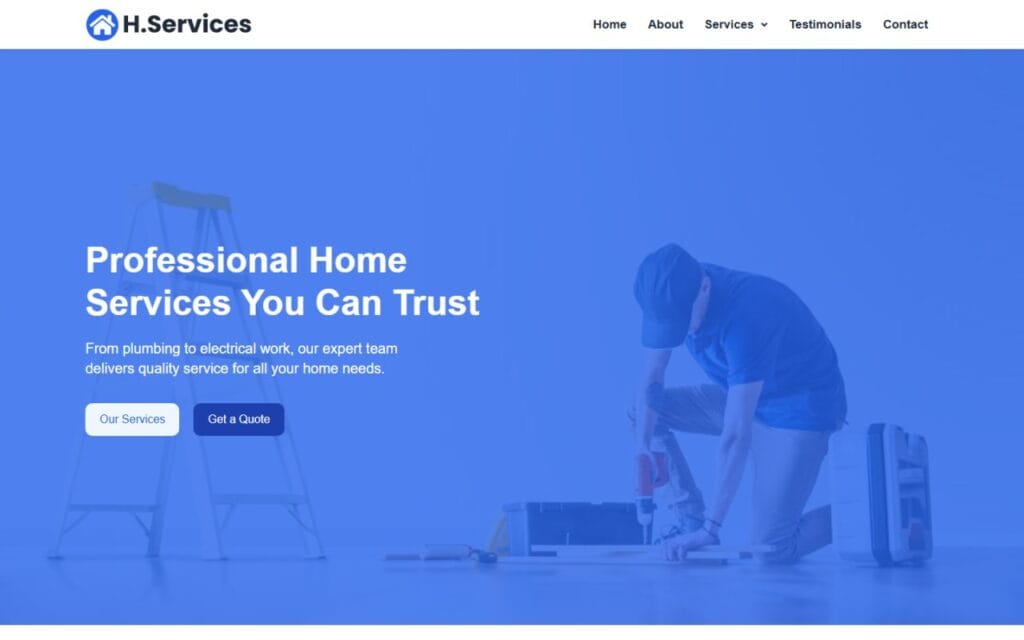
Home Services
One-click importInstalled for you: Hello Elementor theme, Elementor, Elementor Header & Footer Builder, WPForms Lite

BuildPro
One-click importInstalled for you: Hello Elementor theme, Elementor, Elementor Header & Footer Builder, Contact Form 7, Popup Maker (optional)

NoirBite
One-click importInstalled for you: Hello Elementor theme, Elementor, Elementor Header & Footer Builder, Contact Form 7
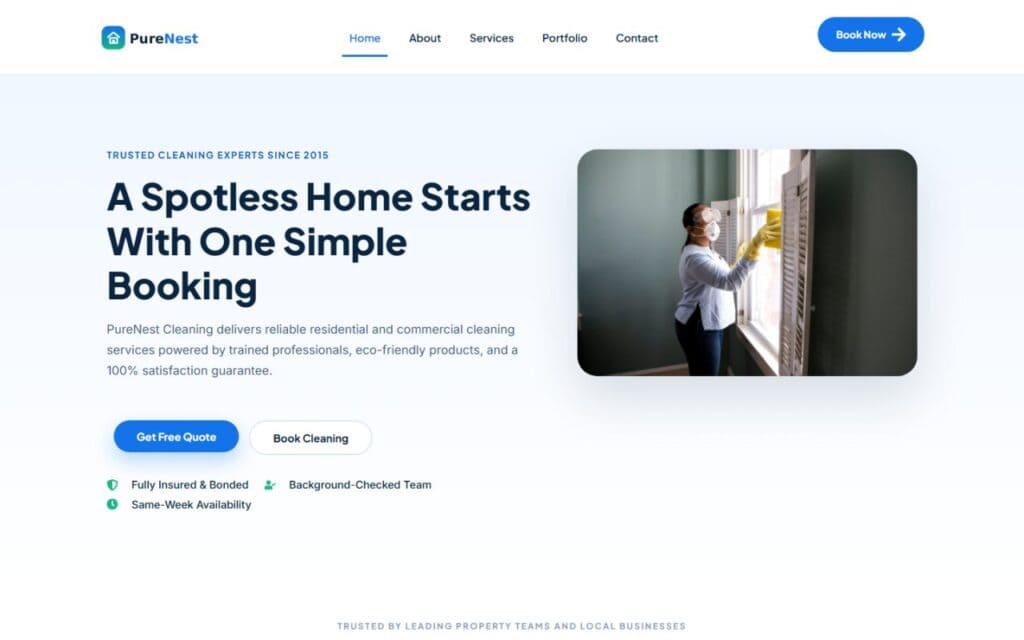
PureNest Cleaning
One-click importInstalled for you: Astra theme, Elementor, Elementor Header & Footer Builder, Contact Form 7
One-click import
- Download the plugin. Save the CodersNoyan Templates plugin (.zip) to your computer. Keep it zipped. Download the plugin
- Install it. In WordPress, go to Plugins → Add New Plugin → Upload Plugin, choose the zip, click Install Now, then Activate.
- Enter your key. Open Appearance → CodersNoyan Templates, paste your licence key and click Activate. The templates your key includes are marked "In your licence".
- Install what the template needs. Open your template. Under Step 1, click Install & activate next to each plugin and the theme it lists.
- Import. Under Step 2, click Import and keep the page open. It usually takes a minute or two.
- Visit your site. Click View your site, then make it yours (see After importing).
After importing
- Texts and photos: open a page and click Edit with Elementor. Replace the logo, texts, photos and contact details with your own.
- Colours and fonts: in the Elementor editor, open Site Settings. Changes there apply to every page.
- Header and footer: they are separate Elementor templates. Edit them from the plugin that shows them (Elementor Header & Footer Builder, or Elementor Pro's Theme Builder) with Edit with Elementor.
- Forms: messages go to the admin email under Settings → General. To use another address, change it in the form's settings.
- Menu: Appearance → Menus.
Your licence key
- Activate the key on the sites you build with your templates. To move it, open Appearance → CodersNoyan Templates on the old site and click Remove key.
- Buying another template later adds it to the same key.
- With Lifetime Access, new templates appear in your account and in the plugin automatically.
Troubleshooting
"The CodersNoyan template library could not be reached"
Wait a minute and try again. Your hosting must let WordPress connect to codersnoyan.com; if the message keeps coming back, ask your host.
"The licence key is not activated on this site"
Paste the key again under Appearance → CodersNoyan Templates and click Activate.
"Your licence does not include …"
A key unlocks the templates bought with your account. Buy that template, or get Lifetime Access for all of them.
"WordPress cannot save files in the uploads folder"
Your hosting account is out of disk space or has reached its file limit. Free up space or ask your host, then import again.
Some photos show as grey boxes
Open the template and click Import Again. Photos already copied are reused and the missing ones are copied.
The import stopped half way
Click Try again. Finished steps are kept, and nothing is duplicated.
I cannot find my key
Log in on codersnoyan.com: it is under My Account → Downloads and in your dashboard's Template Library. It is also in your order email.
Still stuck? Send us your order number and a screenshot, and we will help you finish the setup.
Contact us